Turn a Figma Landing Page into a Live Website
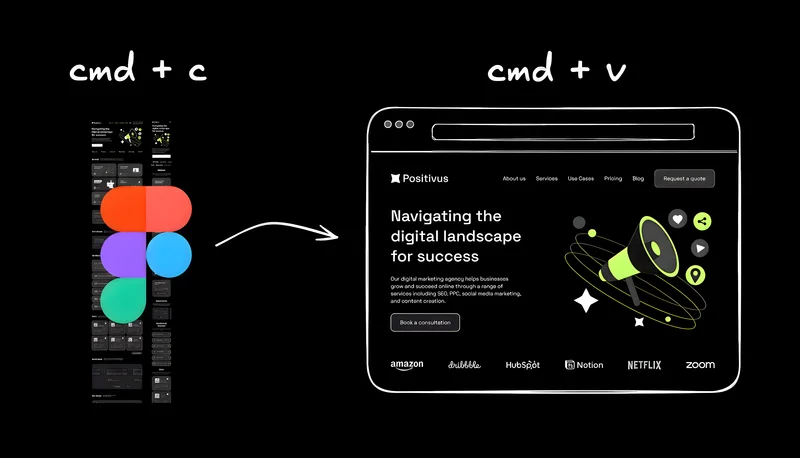
Got a solid Figma landing page and don't want to rebuild it section by section?
Fair. This walkthrough is for designers, PMs, and marketers who want to turn an existing landing page design into a real responsive site without manually recreating every block.
I’m using a free Figma landing page template, importing it into Builder with Smart Export, tightening the output, hooking up a working contact form, and publishing a live URL.
Here's what we'll be making:
Start with a free Figma template
You can use any of the free landing page templates in Figma. There are a lot of solid options. The main thing is picking one with enough structure to make the walkthrough worth doing.
I'm using Positivus because it's a good fit for this workflow. It's long, polished, already includes a contact form in the design, and comes with both desktop and mobile homepage layouts.
That makes it more useful than a simple hero mockup. You're giving Builder an actual marketing homepage to work from, with services, testimonials, team cards, a process section, a footer, and a full contact area.
If you want to follow along exactly, grab the Positivus file first. If not, use any free landing page template you like, or your own design, or something your team already made. The workflow is the same.
Export your homepage frame(s)
Once you've got the file open, select the homepage frame or frames you want to use. I picked the full desktop homepage and the full mobile homepage.
If you have both desktop and mobile versions, use both. That gives Builder more context about layout intent, spacing shifts, and how sections should adapt across breakpoints. In practice, that usually means fewer cleanup prompts later.
If you only have one frame, that's totally fine. Builder still generates responsive output by default, and you can tighten the behavior afterward with prompts or visual edits.
Then open the Builder Figma plugin, go to the Export tab, click Smart Export, and when it finishes, click Click to Copy.
That’s it. Your design is on your clipboard and ready to paste into Builder.
A note on clean designs
The cleaner your Figma structure is, the better the result tends to be.
Auto Layout helps Builder read spacing and hierarchy more accurately, which usually means fewer cleanup passes later. If your layers are messy, expect more cleanup after import. Builder’s docs on Project best practices, Smart Export best practices, and Figma plugin modes are worth a quick skim if you want the best output.
But also? Just try it out and see how it does. You probably have less work to do than you think.
Paste it into Builder
Now create a new Project in Builder and paste the exported frames right into the AI prompt. Builder supports importing one frame or multiple frames this way through the Figma plugin flow.
You can use a prompt like this and let Builder do its thing:
Starting with both desktop and mobile frames doesn't guarantee a perfect result. It does give the model a much better read on how the page should adapt before you start refining the output.
Expect a strong result, then clean up what missed
The Positivus homepage isn't a tiny layout. It's dense, opinionated, and packed with sections. Builder gets close on the first pass.
But on a page like this, AI can't hold every detail in perfect focus at once. It's juggling structure, spacing, typography, responsiveness, and content all together. So the first generation can look strong overall and still miss a few specifics. That's normal.
Don't expect one-shot pixel perfection. Any tool advertising that is, at this point in AI, fake. Expect a strong first pass, then a couple quick cleanup loops. That's the workflow.
If one part looks off, don't re-import the whole homepage. Narrow the AI's focus and fix the rough spot.
Usually that means one of two things.
- Re-export just the section that needs help from Figma, paste that updated context into Builder, and ask it to fix that area.
- Or click into the element in Builder and describe the visual change you need. That works well when the structure is mostly right and you just need layout or sizing help, like making an illustration fill the space correctly or nudging something into place.
That's what happened for me here. The initial import was close overall, but I had a couple goofy details to clean up. Logos improved after I re-exported that component from Figma. Other things were easier to fix by selecting the element in Builder and prompting a more specific visual change.
Use Design mode when output is already close
Sometimes you don't need a whole other prompt. Builder's Design mode lets you select elements directly, adjust styling and layout, manage hierarchy in the Layers panel, and apply those changes back to the code.
It's a great cleanup tool when the import is already close. If the page is 90% there, Design mode is often the fastest way to handle the last 10%.
Just remember you're still designing a web page. You need to think in CSS and account for every screen size. Often the fastest move is to make a rough visual edit to show intent, then ask the AI to clean it up so it works responsively.
Hook up the contact form
Once the page looks right, the next step is making it do something.
Since the contact form is already in the design, this part is mostly about wiring it to a real backend.
First, connect Supabase to Builder using this MCP setup flow. If you want a broader walkthrough of what that unlocks, this guide on using the Supabase MCP server with Builder can give you some more ideas.
Once the connection is ready, you can give Builder a prompt like this:
Use the Supabase MCP server to make this contact form work. Create whatever table is needed, wire these form fields to it, submit a new row on form submit, and add a simple success state.
That's usually enough to get a working first pass. Then you can tighten anything up from there if you need to.
Deploy it
With the form working, it's time to deploy and grab your live URL. That's the last step in turning this from a design exercise into something you can actually use.
If you haven't set up Netlify and the Netlify MCP server yet, follow this zero-to-working-website tutorial, then come back and publish this project.
Once that's done, you've got a full responsive homepage based on a real Figma design, complete with a working contact form and a public link you can share.
Keep going from here
Once you've done the homepage, you can use the same workflow for the rest of the site. Builder's plugin supports exporting multiple frames, and the Figma-to-Builder flow works well for both broad imports and smaller cleanup passes.
So if you want to keep going, you can:
- Import more pages from the same Figma file.
- Re-export any section that still needs fidelity work.
- Add animations in a later polish pass, since the first import is more about layout and structure than motion.
- Keep iterating section by section until the whole thing feels done.
Treat the import as the starting point, not the finish line. Get the homepage working, publish it, and keep iterating from there. No more throwaway prototypes.
The more real context the project has, the easier Builder is to steer.